Printer Says Offline but It Is Switched On: The Real Fix
The offline status is almost always a stale IP address. Here is how to fix it permanently instead of weekly.
If your printer goes offline every few weeks and a restart fixes it for a while, you are treating the symptom. The cause is that your router hands out addresses on a lease, and when the printer's lease expires while it is asleep, it comes back on a different address. Your computer is still looking at the old one.
Confirm the diagnosis in two minutes
- 01Print a network configuration page from the printer's own control panel — the menu is usually under Network, Reports or Wireless
- 02Note the IP address on that page
- 03On your computer, open the printer's properties and check the port or address it is configured to use
- 04If the two numbers differ, this article is your fix
The permanent fix: reserve the address
- 1
Find the printer's MAC address
It is on the same network configuration page, usually labelled Hardware Address or MAC. Twelve characters, often shown in pairs.
- 2
Open your router's admin page or app
Look for DHCP Reservation, Address Reservation, Static Lease or Bind IP to MAC — the name varies by brand but the feature is on virtually every router.
- 3
Reserve an address for that MAC
Pick something at the quiet end of your range, such as .200, so it never collides with a phone or laptop.
- 4
Reboot the printer
It requests an address, the router gives it the reserved one, and it will keep that address forever.
- 5
Remove and re-add the printer on your computer
Delete the existing printer entry first. Add it again, choosing the printer by its new fixed address rather than by discovery.
Windows-specific checks
- Open Printers & scanners, select the printer, and turn off 'Use Printer Offline' if it is ticked
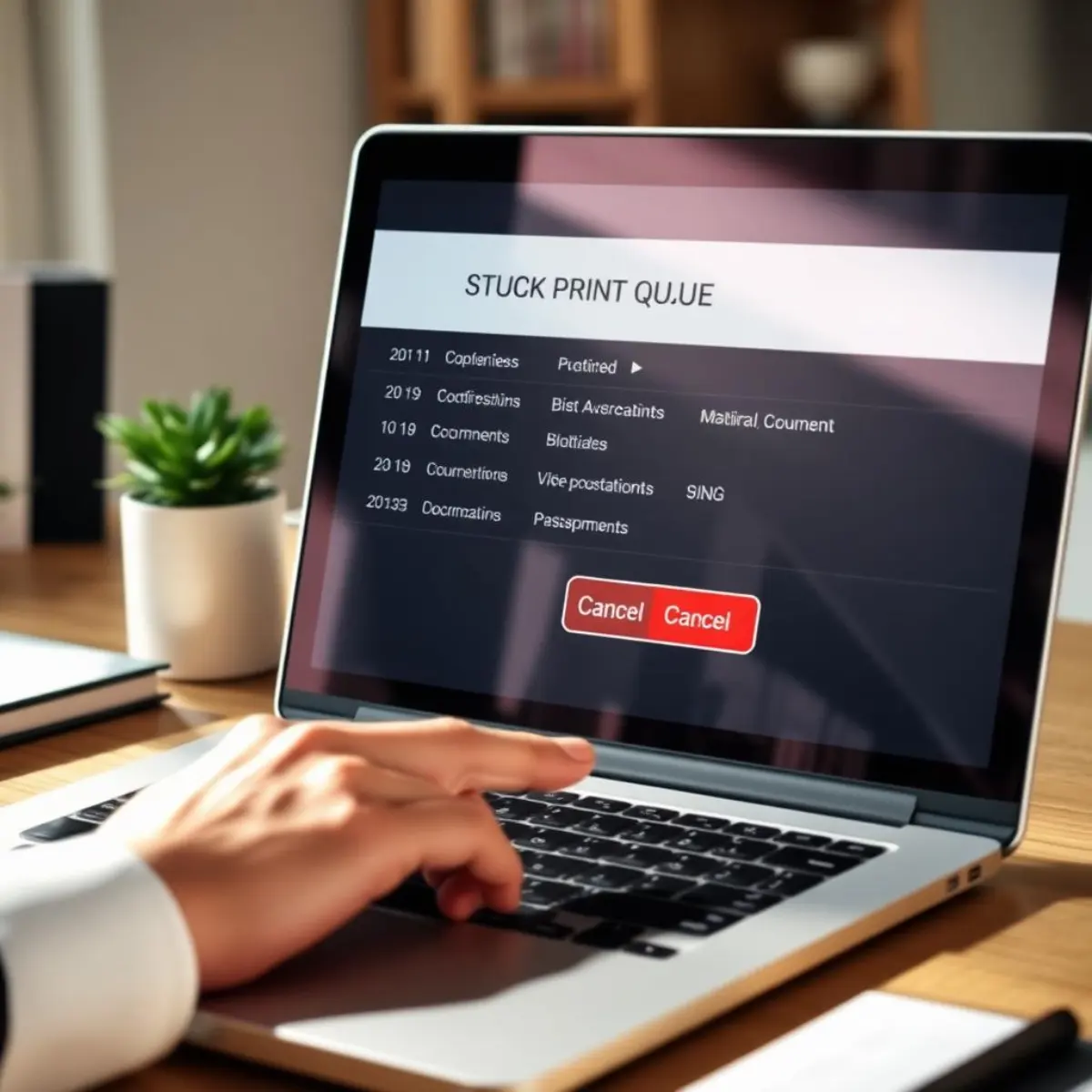
- Clear the stuck print queue — one failed job blocks everything behind it
- Restart the Print Spooler service; if jobs still stick, stop the spooler, empty the PRINTERS folder in the spool directory, and start it again
- Set the correct printer as default so applications stop sending jobs to a Microsoft PDF entry
macOS-specific checks
- In System Settings, remove the printer and re-add it; macOS caches connection details aggressively
- Prefer the AirPrint driver over the manufacturer's driver where both are offered — it is more resilient to address changes
- Reset the printing system as a last resort, then re-add every printer
When it is genuinely the hardware
If the printer cannot hold a wireless connection even sitting next to the router, and a factory network reset does not help, the wireless module is failing. A USB cable or a cheap Ethernet run is a legitimate long-term answer — wireless is a convenience, not a requirement.
Frequently asked questions
- Why does it work again after a restart, then break?
- The restart forces a fresh address request and your computer rediscovers the printer. Nothing has been fixed, so the next lease expiry brings the problem back. The reservation is what stops the cycle.
- Should I connect the printer by USB instead?
- If only one person prints and the printer sits near that desk, USB is more reliable and simpler. Wireless is worth the setup only when several devices need to print.
DailyHubware may earn a commission from links in this guide. It never affects which products we recommend or what we tell you to try first — the free fixes always come before any purchase.