Smart Plug or Bulb Will Not Connect? Start With the 2.4 GHz Band
Nine out of ten failed pairings come down to band, distance or a phone setting — not a faulty device.
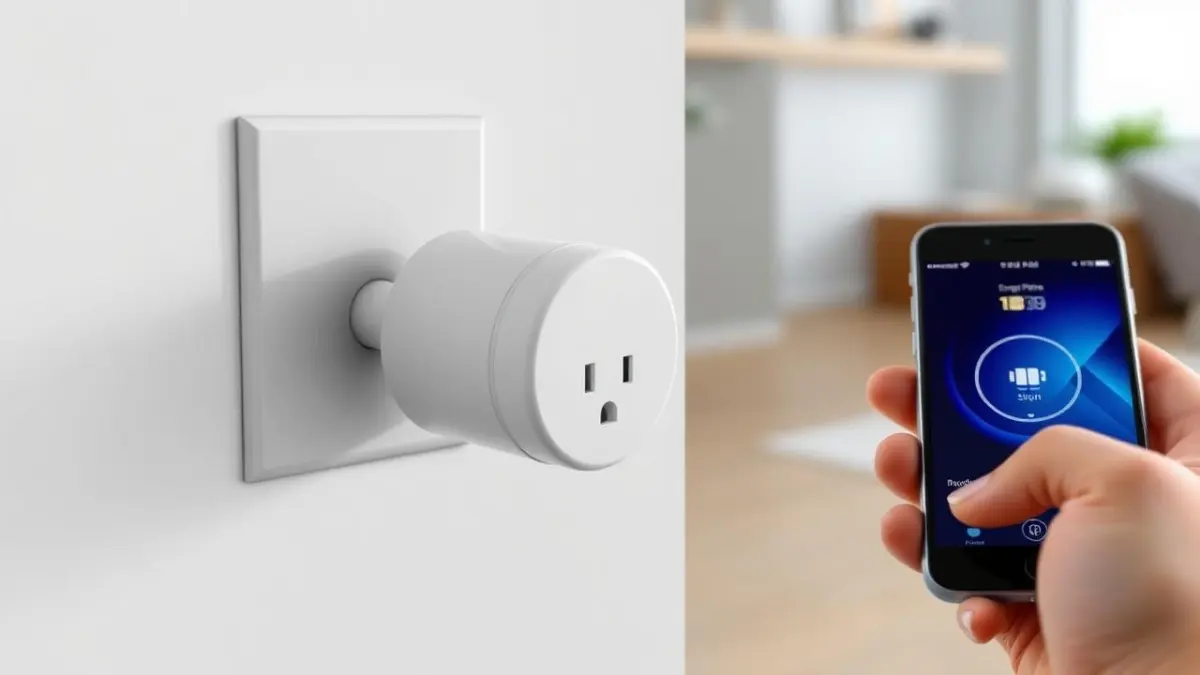
Pairing failures feel random but follow a very short list of causes. Work through them in order and the device will almost always join.
1. The band is the usual culprit
Smart plugs, bulbs, sensors and many cameras use 2.4 GHz only, because it is cheaper and reaches further. During pairing, the app passes your Wi-Fi credentials from the phone to the device — so your phone must also be on 2.4 GHz at that moment. If your router merges both bands into one name, the phone is probably on 5 GHz and the handover silently fails.
- Temporarily split the bands in your router settings and give 2.4 GHz its own name
- Or create a dedicated 2.4 GHz guest or IoT network and keep it permanently for smart devices
- Connect the phone to that network, pair the device, then switch the phone back
2. Pair close, install later
Pair the device within two or three metres of the router even if it will eventually live in the garage. Pairing is more sensitive to weak signal than normal operation. Once joined, move it and test.
3. Turn off private Wi-Fi address
iOS and Android randomise the phone's hardware address per network by default. Some pairing flows fail because of it. In your phone's Wi-Fi settings for that specific network, disable Private Wi-Fi Address or Randomised MAC, then retry.
4. Reset the device properly
A half-provisioned device will refuse to pair again until it is reset. The reset is usually holding the power button for five to ten seconds until the indicator flashes rapidly, or for bulbs, switching them off and on at the wall three to five times. Check the manual for the exact pattern — flashing slowly and flashing quickly mean different things.
5. Check your device limit
Budget routers cap the number of connected clients, sometimes at 32. A smart home reaches that faster than you would think once you count plugs, bulbs, speakers, TVs, phones and laptops. If devices started dropping off after you added several new ones, this is worth checking in your router's client list.
Keeping automations reliable afterwards
- Reserve a fixed address in the router for hubs, cameras and anything that runs automations
- Keep smart devices on their own 2.4 GHz network permanently, separate from laptops and phones
- Update device firmware from within the manufacturer's app every few months
- Prefer devices that support local control, so automations still run if the internet drops
Frequently asked questions
- Will splitting my Wi-Fi bands slow my phone down?
- No. Your phone and laptop simply join the 5 GHz network by name. Splitting only removes the automatic steering, which those devices do not need if you connect them to the fast network directly.
- Is a hub better than Wi-Fi devices?
- For more than about fifteen devices, yes. Zigbee, Thread and Matter devices form their own mesh and do not consume Wi-Fi client slots, which makes large setups far more stable.
DailyHubware may earn a commission from links in this guide. It never affects which products we recommend or what we tell you to try first — the free fixes always come before any purchase.