How to Speed Up a Slow Laptop Without Buying a New One
Startup load, storage headroom and thermal throttling explain most slowdowns. Work through them in order.
A laptop that felt fast three years ago rarely has a single dramatic fault. It has accumulated startup software, run low on drive headroom, and filled its cooling path with dust. Address those three before spending anything.
1. Cut what loads at startup
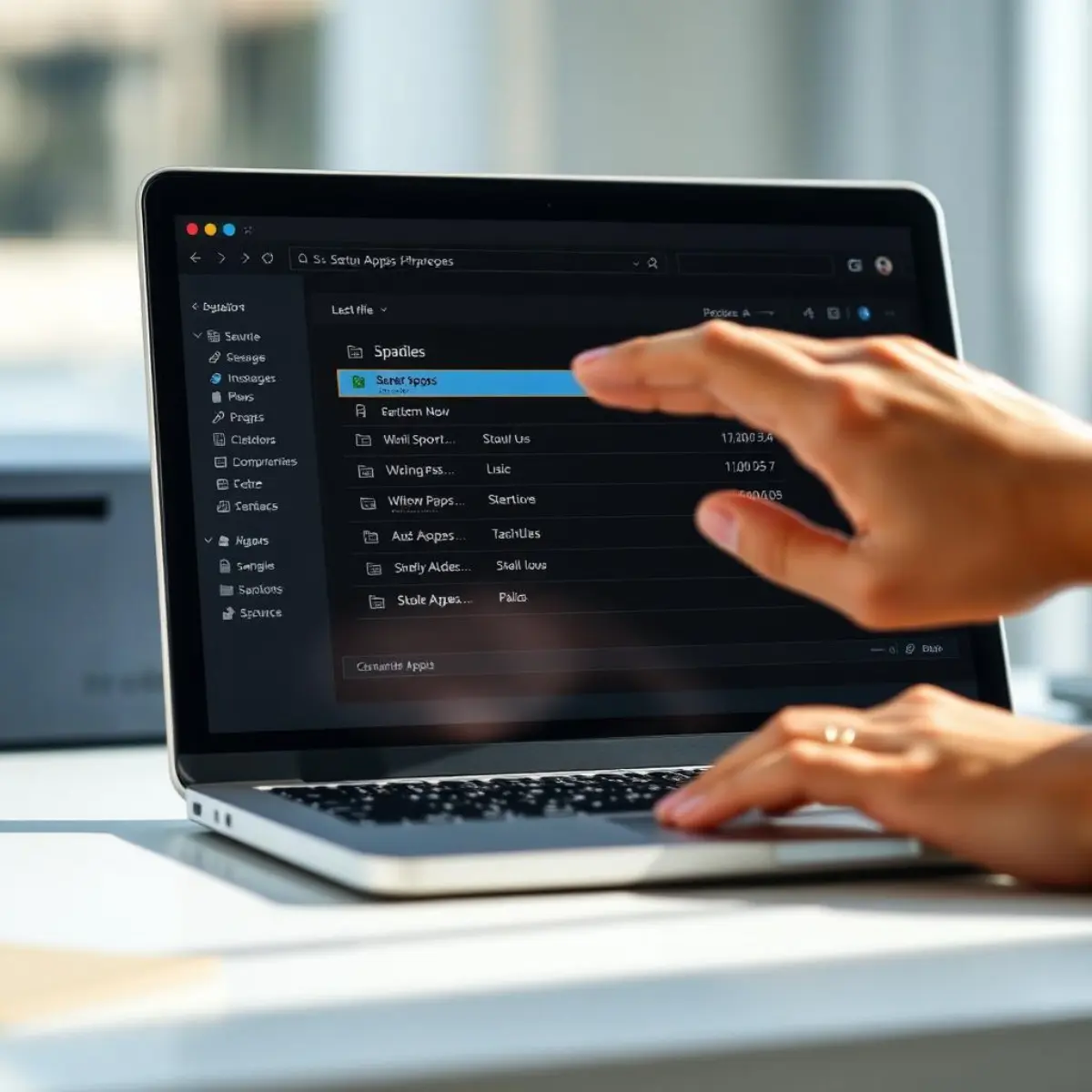
On Windows, open Task Manager and go to the Startup apps tab. Disable anything with a high impact rating that you do not need the moment you log in — updaters, cloud sync clients, chat apps, manufacturer utilities. On macOS, check Login Items in System Settings. This is usually the most noticeable single improvement.
2. Give the drive room to breathe
Both Windows and macOS slow dramatically when the system drive passes roughly 85% full, because there is no space for temporary files, swap and update staging. Aim to keep 15–20% free.
- Empty the recycle bin or trash, which people genuinely forget
- Run Storage Sense on Windows or Manage Storage on macOS
- Move photo and video libraries to an external drive or cloud storage
- Uninstall large applications you no longer open
- Clear old Windows update files through Disk Cleanup's system files option
3. Check for thermal throttling
If the laptop is fast for ten minutes and then crawls, and the fans are loud, it is overheating and reducing its own clock speed to survive. Blocked intakes are the usual cause.
- 01Shut the laptop down and unplug it
- 02Blow compressed air through the intake and exhaust vents in short bursts, holding the fan still if you can reach it
- 03Never use a vacuum cleaner — static risk and it can over-spin the fan
- 04Use the laptop on a hard surface; beds and sofas block underside intakes entirely
4. Deal with the browser
On machines with 8 GB of RAM or less, the browser is frequently the whole problem. Thirty open tabs, three extensions doing background work and a video call will exhaust available memory and push the system into swapping. Close tabs, audit extensions, and use a tab-suspending feature if your browser has one.
5. Then, and only then, upgrade hardware
Swap a hard drive for an SSD
If the laptop still has a spinning hard drive, this is transformative — boot times drop from minutes to seconds and the machine stops stalling on every file operation. It is the best value upgrade in computing and often costs less than a takeaway dinner per year of extra life.
Crucial MX500 1TB SATA SSD
Fits almost any laptop with a 2.5-inch drive bay, includes cloning software so you can copy your existing drive across, and is consistently the best value in its class.
Around $60
Affiliate link — we may earn a commission
Add RAM
Going from 8 GB to 16 GB helps if you routinely have many tabs plus office applications open. Going from 16 GB to 32 GB helps almost nobody doing ordinary work. Check first whether your model has accessible slots — many thin laptops have RAM soldered to the board.
Crucial 16GB DDR4-3200 Laptop RAM (SO-DIMM)
A safe, widely compatible upgrade for most Windows laptops from the last five years. Use Crucial's compatibility checker against your exact model before ordering.
Around $35
Affiliate link — we may earn a commission
When replacement is the honest answer
If the machine no longer receives security updates, the battery lasts under an hour, and it already has an SSD and adequate RAM, further spending is not worth it. That is the point to budget for a replacement rather than keep patching.
Frequently asked questions
- Does reinstalling the operating system help?
- Yes, meaningfully, on a machine that has been in daily use for years. It clears accumulated startup software and driver conflicts. Back up first and make sure you can retrieve your product keys and files.
- How much free space should I keep?
- At least 15% of the drive, and 20% if you install large updates or edit media. Below 10%, performance falls off sharply.
DailyHubware may earn a commission from links in this guide. It never affects which products we recommend or what we tell you to try first — the free fixes always come before any purchase.