Why Wi-Fi Is Slow in One Room — and How to Fix It
Dead zones are almost always a placement or band problem, not a speed problem. Diagnose it in ten minutes.
One slow room is a coverage problem, and coverage problems are not solved by paying for a faster plan. The test below tells you within ten minutes whether the fault is your connection, your router's position, or the distance itself.
The ten-minute diagnosis
- 1
Run a speed test standing next to the router
Write the number down. This is the best your connection can do. If it is already far below what you pay for, the problem is your line or your provider, and nothing you do inside the house will help.
- 2
Run the same test in the slow room
Compare. A drop of more than about 60% confirms a coverage problem rather than a connection problem.
- 3
Check the signal bar and the band
On Android and Windows you can see which band you are on. If the slow room is stuck on 5 GHz at one bar, the device is clinging to a band that cannot reach that far.
Fix it in this order
1. Move the router, not the furniture
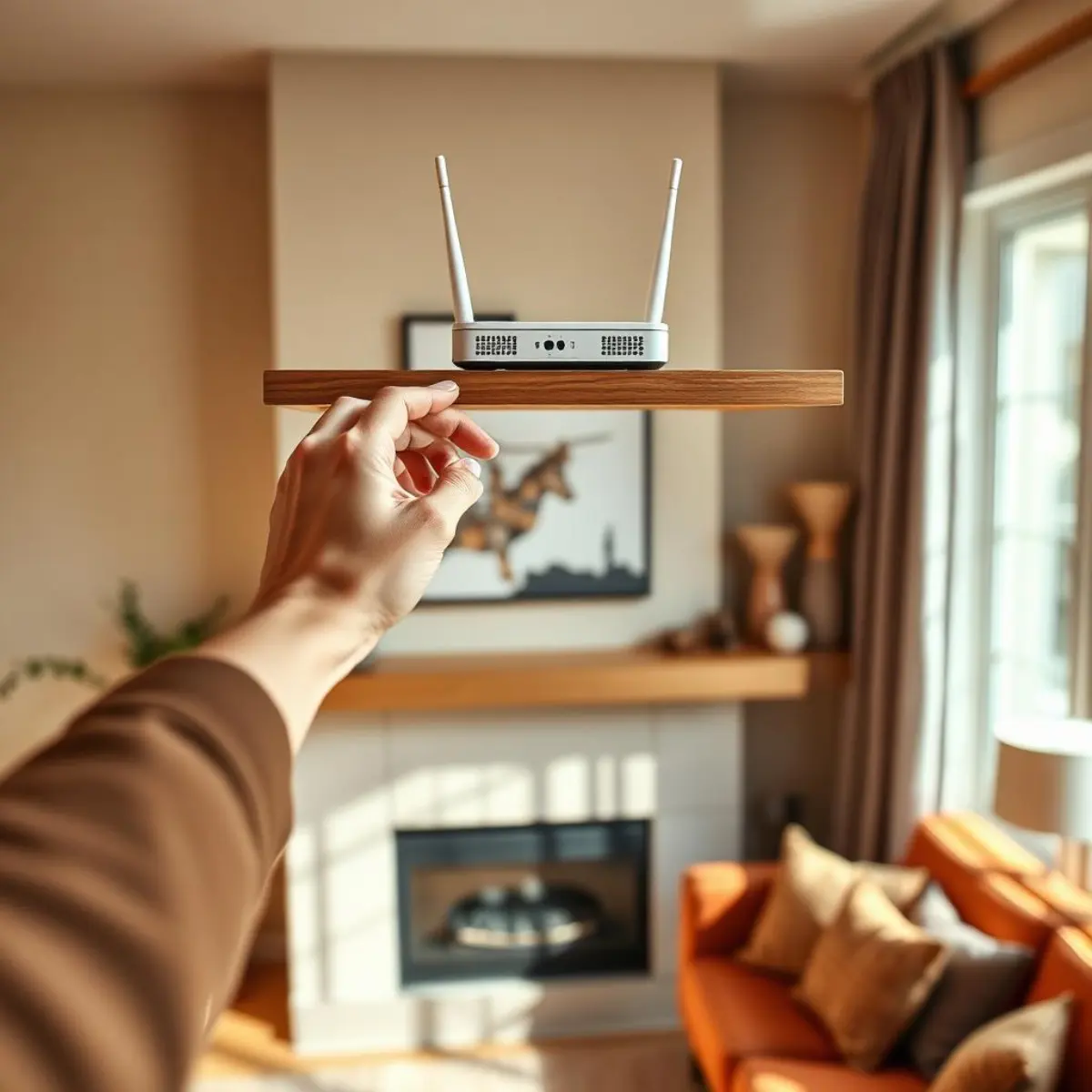
Wi-Fi radiates outward and slightly downward. A router in a corner wastes half its signal on the neighbours. Move it toward the centre of the home, raise it to shelf height, and get it out of any enclosed space. This one change routinely doubles the far-room number and costs nothing.
2. Understand the two bands
2.4 GHz travels far and passes through walls but is slower and crowded. 5 GHz is much faster but loses strength quickly through solid material. A device in a far room that keeps clinging to 5 GHz will feel broken. If your router allows it, enable band steering; if the problem persists on one specific device, forget the network on that device and rejoin.
3. Change the channel
In flats and terraced housing, 2.4 GHz is congested because every neighbour is on it. In the router's wireless settings, set the 2.4 GHz channel manually to 1, 6 or 11 — whichever is least used nearby — instead of Auto. On 5 GHz, Auto is usually fine.
4. Add a node, not an extender
If placement and bands are sorted and the room is still weak, you need more coverage. A mesh node communicates with the main router and keeps one network name, so devices roam cleanly. A basic range extender rebroadcasts with a separate name, halves throughput and forces you to switch manually. Mesh is worth the extra money in almost every case.
TP-Link Deco X55 AX3000 Mesh Wi-Fi 6 System (2-Pack)
The two-pack covers most three-bedroom homes, sets up in about ten minutes from the app, and keeps a single network name so devices roam without drops.
Around $150 for two units
Affiliate link — we may earn a commission
Things that will not help
- Upgrading your internet plan — the bottleneck is inside the house
- Signal-boosting stickers, foil reflectors and similar products
- Rebooting the router daily, which masks a fault rather than fixing it
- Buying a Wi-Fi 7 router while keeping it in the same cupboard
Frequently asked questions
- How many mesh nodes do I need?
- For most homes, the main unit plus one node covers a two-storey house. Add a second node only for a third floor, a garden office or a home over roughly 200 square metres.
- Is a wired connection still better?
- Yes, clearly, for anything stationary. A single Ethernet run to a desk or a TV removes that device from the wireless contention entirely and improves Wi-Fi for everything else too.
DailyHubware may earn a commission from links in this guide. It never affects which products we recommend or what we tell you to try first — the free fixes always come before any purchase.
More in Wi-Fi & Networking
How to Set Up a New Wi-Fi Router (Step by Step, Any Brand)
A brand-agnostic setup order that avoids the two mistakes that cause most first-day Wi-Fi problems.